Overview
When you view your screens in Yodeck, each screen thumbnail displays a status message telling you exactly what that screen is doing or what it needs from you. These messages appear in three places across the platform:
- Screens List page —> your main overview of all screens
- Screen Settings page —> when you open an individual screen’s configuration
- Screen Registration page —> when you’re adding a new screen to your account
ℹ️Use this guide to understand what each message means and what action, if any, you need to take.
Quick Reference
| Message | Status | Action needed? |
|---|---|---|
| No content assigned to player | Online | Yes — assign content |
| No content assigned to player | Offline | Yes — check device & assign content |
| Screenshots available with extension | Online | Yes — install Yodeck Extension |
| Your screenshot will appear here when you install the Yodeck Extension | Online | Yes — install Yodeck Extension |
| Let’s download the Yodeck Extension so you can view your screenshots | Online | Yes — install Yodeck Extension |
| Capturing screenshot… | Online | No — wait a few seconds |
| Your screenshot will appear here soon | Online | No — wait a few minutes |
| Registering screen… | Registering | No — wait a few seconds |
| Screen not registered | Offline | Yes — complete registration |
| Waiting for screen to come online | Registered | Yes — check device & connection |
| Screen turned off | Off | Only if unexpected |
| Content playing (live screenshot) | Online | No — all good |
Screen Messages Explained
Below are the explanations and possible actions that might be required for each Screen message.
No content assigned to player (Online)
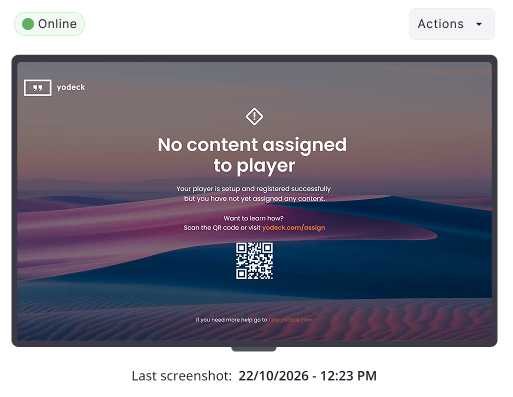
Your screen is online and connected to Yodeck, but it has no content to display yet. No playlist or layout has been assigned to it. The physical screen shows a QR code you can scan to jump straight into content setup.
⚙️What to do: Go to Playlists or Layouts, create your content, and assign it to this screen via Screen Settings.
No content assigned to player (Offline)
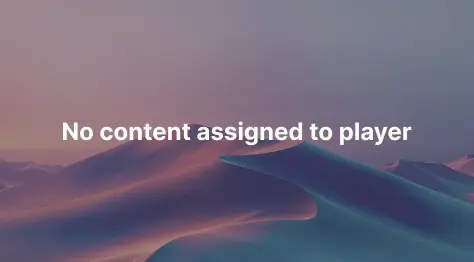
Your screen is offline and has no content assigned to it. Yodeck can’t reach the device, and there’s nothing scheduled to play.
⚙️What to do: First, make sure the player device is powered on and connected to the internet. Once it comes back online, assign a playlist or layout to it via Screen Settings.
Screenshots available with extension
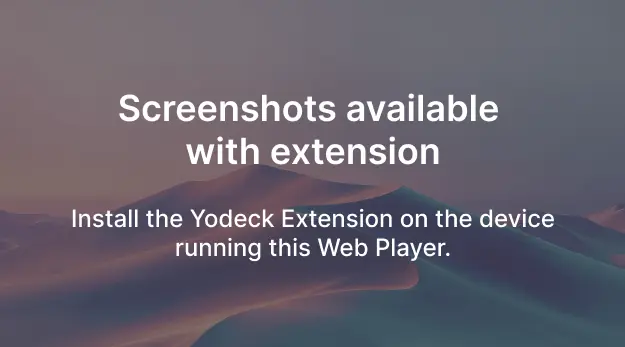
Your screen is running as a Web Player and is fully capable of sending live screenshots, but only once you install the Yodeck Browser Extension on the device running the Web Player.
⚙️What to do: Click Install Extension in the message and install it on the Web Player device. Once installed, Yodeck starts capturing screenshots automatically.
Your screenshot will appear here when you install the Yodeck Extension
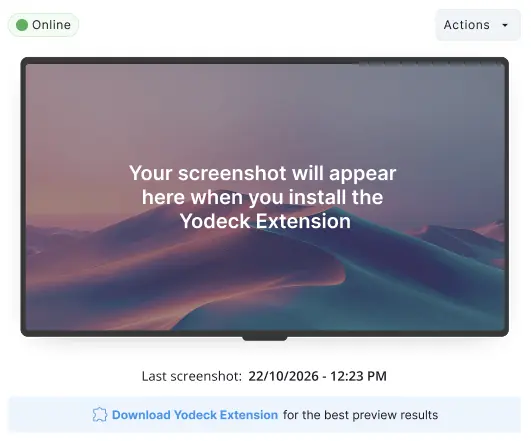
Your screen is online and playing content, but Yodeck can’t show you a live preview. The device running your Web Player doesn’t have the Yodeck Browser Extension installed.
⚙️What to do: Click Download Yodeck Extension below the thumbnail and install it on the Web Player device.
Let’s download the Yodeck Extension so you can view your screenshots
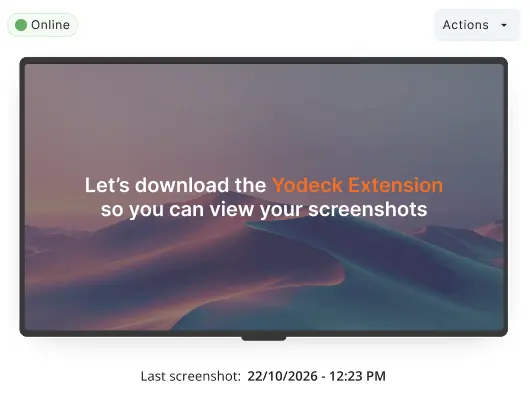
This is another variation of the prompt above, shown in certain player configurations. Your screen is online, but screenshot previews aren’t available without the Yodeck Browser Extension on the Web Player device.
⚙️What to do: Click the Yodeck Extension link in the message and install it on the Web Player device.
Capturing screenshot…
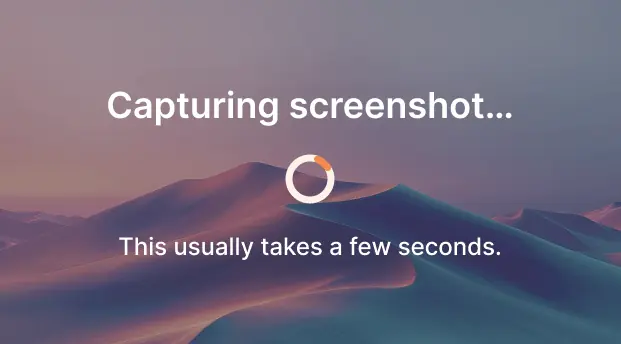
Your screen is online, and Yodeck is actively capturing a live screenshot right now. This takes just a few seconds.
⚙️What to do: Nothing. The thumbnail updates automatically once the capture finishes.
Your screenshot will appear here soon
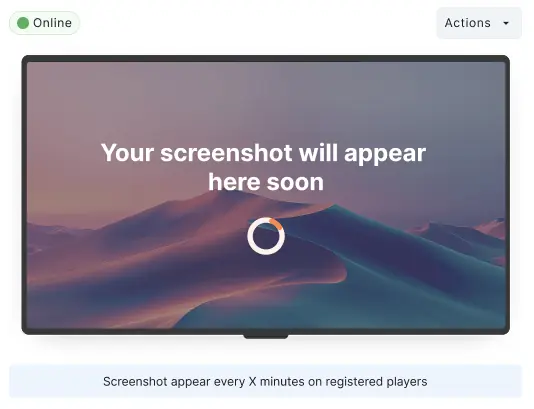
Your screen just came online, and Yodeck has queued its first screenshot capture. You’ll see this right after a screen connects for the first time or reconnects after being offline.
⚙️What to do: Nothing. Yodeck captures screenshots at regular intervals for registered players. The thumbnail updates on the next cycle.
Registering screen…
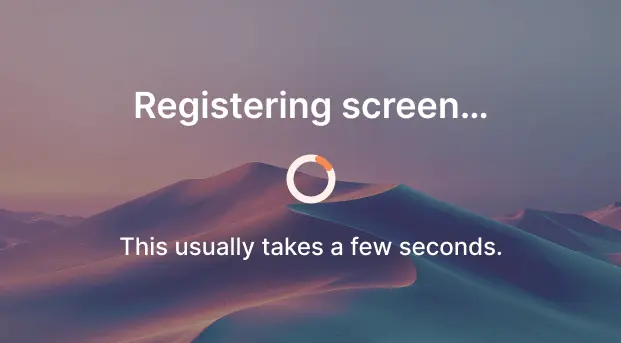
Your screen is completing its registration with the Yodeck platform. This process normally finishes within a few seconds.
⚙️What to do: Nothing, let it complete. If it stays on this message for more than a minute, check the device’s internet connection and restart the Yodeck Player app.
Screen not registered
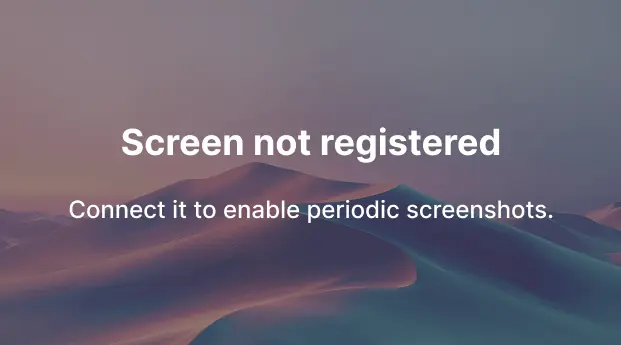
You’ve added this screen to your Yodeck account, but it hasn’t completed the registration process. It isn’t connected to the platform yet, and screenshot capture won’t be available until you finish the setup.
⚙️What to do: Make sure the player device is powered on, connected to the internet, and running the Yodeck Player app. Then follow the on-screen registration steps to complete the connection.
Waiting for screen to come online
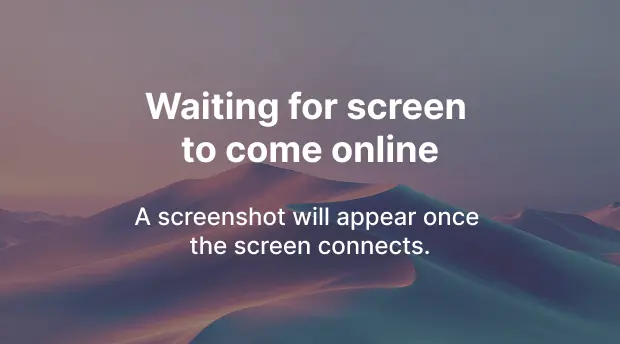
You’ll see this message in two situations:
- The screen has never come online: Yodeck registered the device successfully, but it hasn’t connected to the platform yet.
- The screen came online briefly: The device connected for a short time but disconnected before Yodeck could capture a screenshot.
In both cases, Yodeck is ready and waiting for a stable connection.
⚙️What to do: Check that the player device is powered on and has a stable internet connection. Once it connects, Yodeck captures a screenshot automatically.
Screen turned off
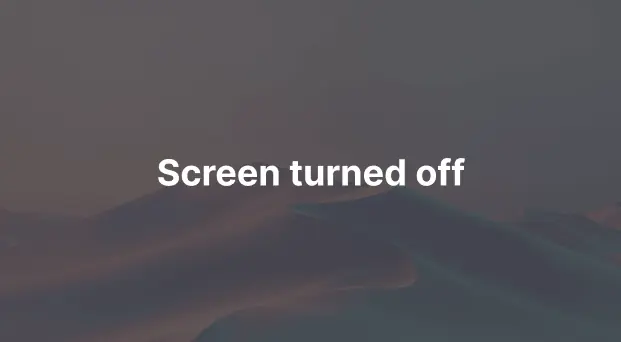
Your screen is off; either you turned it off manually, or a power schedule you configured in Yodeck switched it off.
⚙️What to do: If this is expected, everything is working as intended. If your screen should be on, check the physical device and review any power schedules under Screen Settings > Power Schedule.
Content playing (live screenshot)
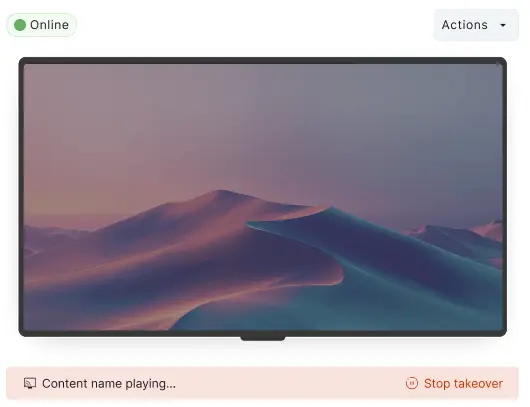
This is the healthy state. Your screen is online, content is playing on schedule, and the thumbnail shows a live screenshot of exactly what’s on screen right now.
If a Takeover is active, a Stop takeover button appears in the bottom-right corner of the thumbnail.
⚙️What to do: Nothing, since your screen is running perfectly. To end an active Takeover and return to your regular playlist, click Stop takeover.
Frequently Asked Questions
Creating a playlist doesn’t automatically assign it to a screen. You need to link the two manually. Open Screen Settings for that screen, find the content assignment section, and select your playlist.
Live screenshots are only available on registered screens running the Yodeck Player app, or on Web Players with the Yodeck Browser Extension installed. If your screen shows any of the Extension-related messages, installing the Extension resolves this.
Yodeck captures screenshots automatically at regular intervals on all registered players. The exact frequency depends on your plan. You’ll always see the timestamp of the last captured screenshot below the thumbnail.
This usually points to a connectivity issue. Check that the player device is powered on, connected to a stable network, and running the latest version of the Yodeck Player app. If the problem persists, check your firewall or network settings to make sure the device can reach Yodeck’s servers.
A Takeover lets you override your regular scheduled content and push specific content to a screen immediately. When a Takeover is active, you’ll see a Stop takeover button on the screen thumbnail. Click it to end the Takeover and resume your normal playlist.
Not at all. It simply means the screen is powered off, either manually or via a scheduled power rule. If you didn’t intend to turn it off, check your Power Schedule settings under Screen Settings.
Troubleshooting Tips
If a screen message isn’t resolving on its own, run through these checks before contacting support:
- Check the physical device: Make sure the player is powered on and the display is connected.
- Check the internet connection: The device needs a stable connection to communicate with Yodeck.
- Restart the Yodeck Player app: A quick restart resolves most temporary connection issues.
- Check for the Yodeck Browser Extension: If you’re using a Web Player and see any Extension-related message, install the Extension on that device.
- Review your content assignments: If the screen shows “No content assigned to player,” make sure a playlist or layout is linked to it in Screen Settings.
- Check your Power Schedule: If the screen appears “Off” unexpectedly, a scheduled rule may have turned it off.
If none of the above resolves the issue, reach out to the Yodeck Support Team, they’re happy to help. ⬇️
Need Help?
The Yodeck Support Team can help you out! Log in to your Yodeck account and send us a message from the bottom right corner!